Working with the Vector Index
Introduction
The Vector Index is part of the Data Foundation AI Services. It facilitates similarity searches based on AI language models. This document describes how to enable the Vector Index for an asset collection and how to use it for Crosswalks and the AutoClassifier.
Enable the Vector Index
Enabling the Vector Index for an Asset Collection
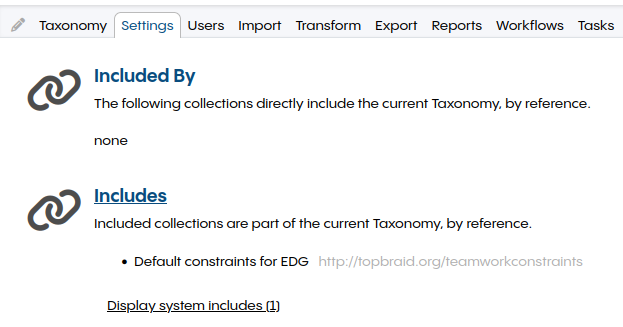
All the TQ Data Foundation AI Service features, including the Vector Index, are bundled in the TopBraid AI Service collection that needs to be included.
To do that, go to Settings, Perferences, Includes:
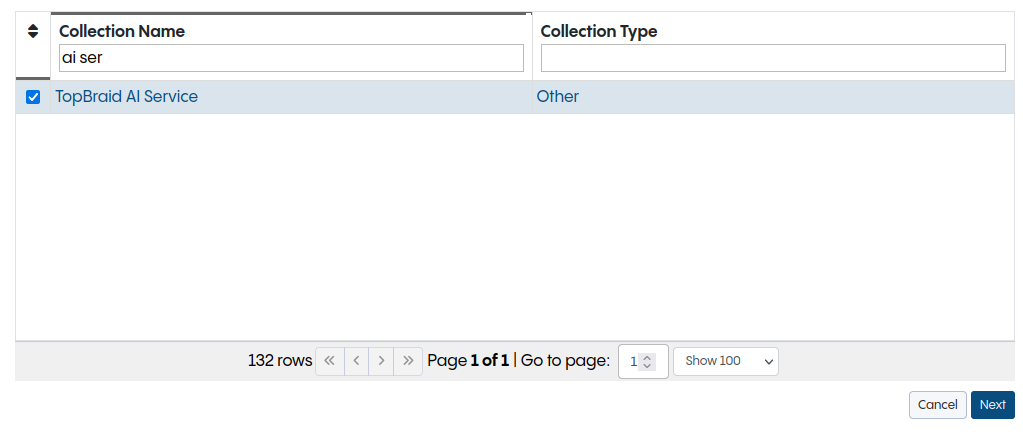
Search on the top by name for AI Service, check it, and press next:
It’s required to define the classes and properties which should be used by the Vector Index.
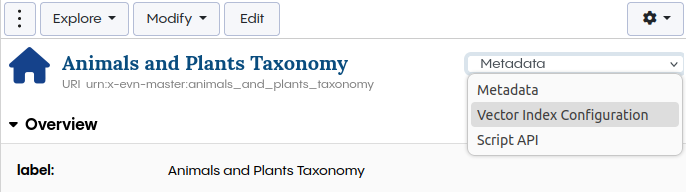
That configuration can be found on the start page of the asset collection.
On the right, select Copilot Configuration.
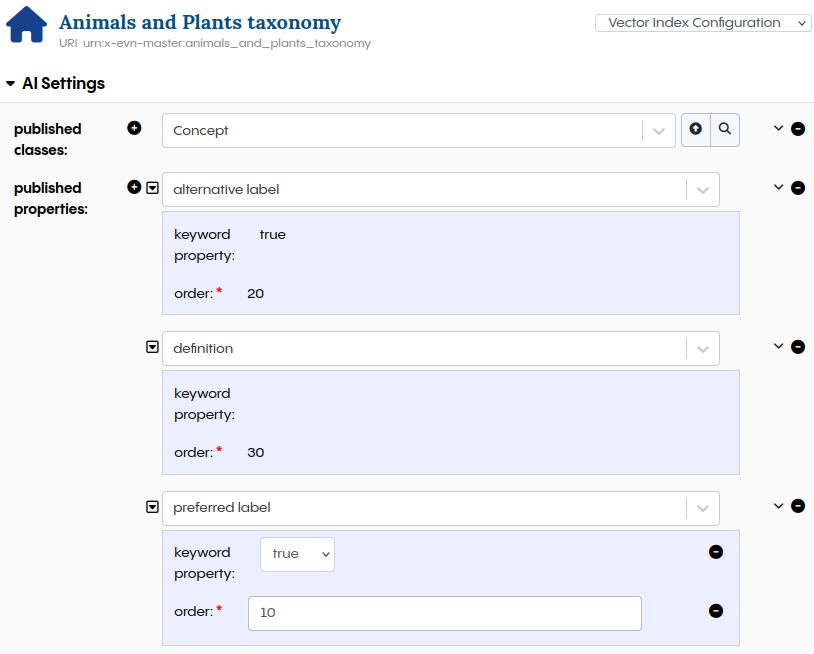
Select the classes that should be indexed.
The screenshot shows an example for a taxonomy.
All instances of Concept will be indexed with the content of the properties preferred label and alternative label.
Additional properties, describing the instance, like description should be added if they are used.
Each instance requires a label for the indexing.
Based on the order, the first property that can be found will be used.
Properties marked as keyword will be used for keyword or hybrid search method.
Only label properties should be configured as keyword properties.
Description properties may contain keywords of related resources and could distort the search results.
It’s required to mark at least one property as a keyword property.
If there are already instances of classes that should be indexed before the index was created, it’s required to push them initially.
This can be done using the Push to Vector Index Modify action shown below.
All changes made after enabling the Vector index will be synchronized automatically.
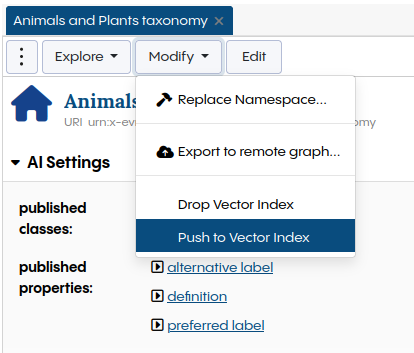
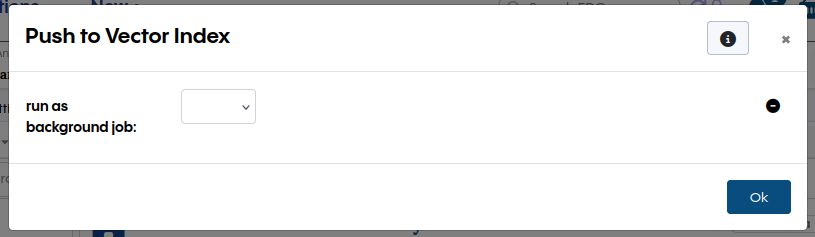
The indexing can be done in foreground showing the progress, or in background. If there are more than 200 instances to index, run as background job should be set to true. In that case a notification will be shown once the indexing is done or if any errors have appeared.
Changing the Vector Index Configuration
It’s required to reindex the Vector Index when the configuration was changed (classes and properties have been added or removed). To reindex, perform the following steps:
Delete the Vector Index
Create the Vector Index
Push to Vector Index
Enable Document Chunking
Attention
This feature is experimental and may change in future releases. Please contact TopQuadrant support before using it in production.
Requirements: The AI Service must be included in the asset collection.
Documents within a corpus can be chunked to improve search performance of the Vector Index. Automatic chunking can be configured either when documents are uploaded via the Corpus Upload API or when a document is modified.
Configuration
All settings are available in the Vector Index Configuration page of the asset collection.
Indexing
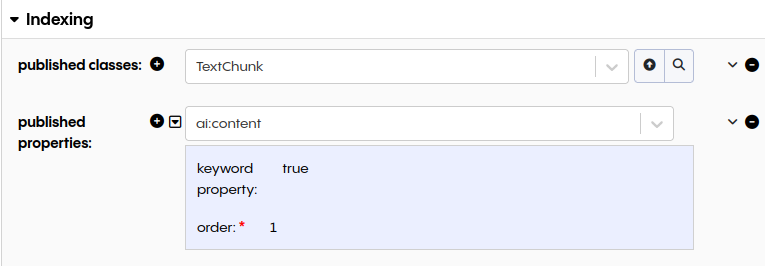
In the Indexing section of the Vector Index Configuration:
Configure
TextChunkas published classes. Click the Also include subclasses of rdfs:Resource, not just owl:Thing button next to the published classes field, then select TextChunk.Configure the
contentproperty, defined in the TQ Data Foundation AI Service, as published properties, with the following options:keyword property:
trueorder:
1
Chunking
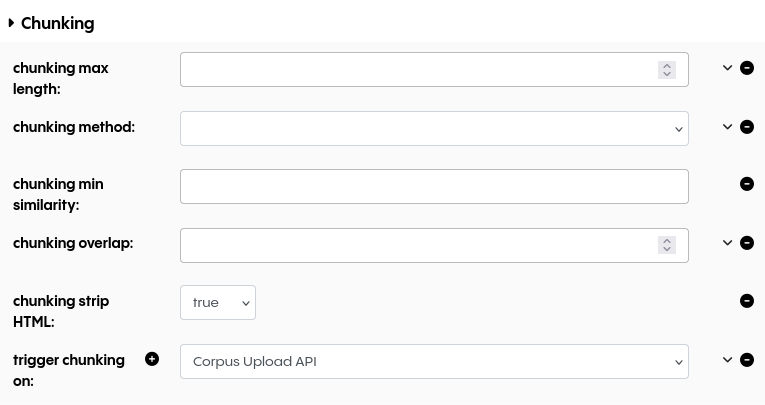
Automatic chunking can be enabled based on different events, which must be selected in the trigger chunking on property. The following triggers are available:
Change: Triggers when a document is edited through the UI.
Corpus Upload API: Triggers when a document is uploaded via the Corpus Upload API.
Other Chunking Settings
Setting |
Description |
|---|---|
chunking max length |
The maximum length of a chunk. This setting can be adjusted based on the selected language model. (default: 5000) |
chunking method |
The chunking method ( |
chunking min similarity |
The minimum similarity between two sentences required to keep them in the same chunk. Lower values will result in more splitting. This setting can be adjusted based on the selected language model. |
chunking strip HTML |
Removes HTML tags before passing the text to the chunking process. |
Use the Vector Index for Crosswalks
Any asset collection for which the Vector Index has been enabled can be used as a target in a Crosswalk.
See also
See Working with Crosswalks for a detailed guide on the crosswalk asset collection type.
After creating a Crosswalk, the matching method needs to be changed.
That configuration can be found on the start page of the asset collection.
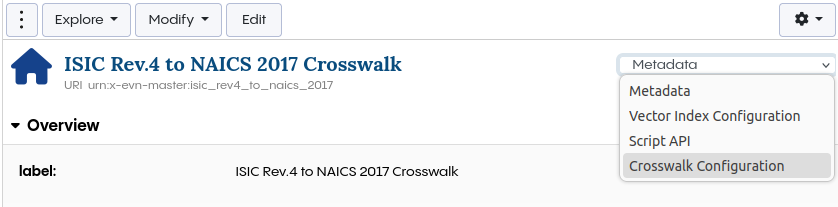
On the right, select Crosswalk Configuration.
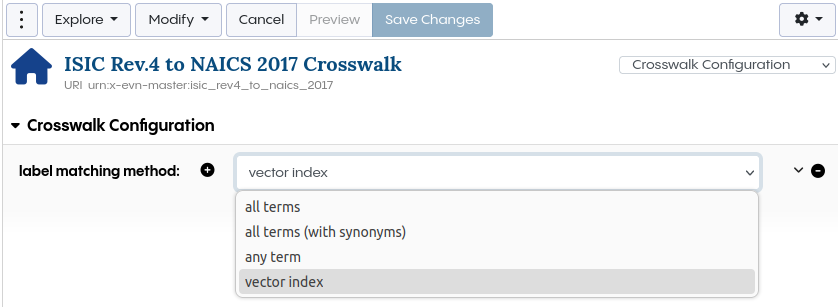
In the Crosswalk configuration, change the label matching method to vector index.
Run the Problems and Suggestions to see the recommendations based on the Vector Index.
Use the Vector Index in Code
The Vector Index provides APIs for programmatic access.
SPARQL functions
Functions for the Vector Index are available in the AI service namespace: http://ai.topbraid.org/ai-service#.
You can leverage the Vector Index’s text search within a SPARQL query using the vectorIndexSearch function.
Below is a simple example that includes a filter to retrieve only results above a specified threshold.
This search is combined with a pattern to narrow the results to a subset of a taxonomy:
    PREFIX ai: <http://ai.topbraid.org/ai-service#>
    PREFIX g: <http://topquadrant.com/ns/examples/geography#>
    PREFIX skos: <http://www.w3.org/2004/02/skos/core#>

    SELECT * WHERE {
      "island" ai:vectorIndexSearch (?term ?score).

      ?term skos:broader* g:Asia.

      FILTER(?score > 0.85)
    }