Copilot
Introduction
Copilot is a suite of AI-powered features integrated into TQ Data Foundation, designed to assist users in creating, discovering, and managing data more efficiently. Copilot features are only available in SaaS environments.
Use Copilot Chat with TQ Data Foundation
Copilot Chat answers questions about TQ Data Foundation based on the official documentation.
Note
Currently, only single questions are supported and not full dialog. Dialog support will be available in the next release.
Enable Copilot Chat with TQ Data Foundation
Please contact support to enable the Chat with TQ Data Foundation feature for your installation, if it’s not already enabled.
Use Copilot Chat with TQ Data Foundation
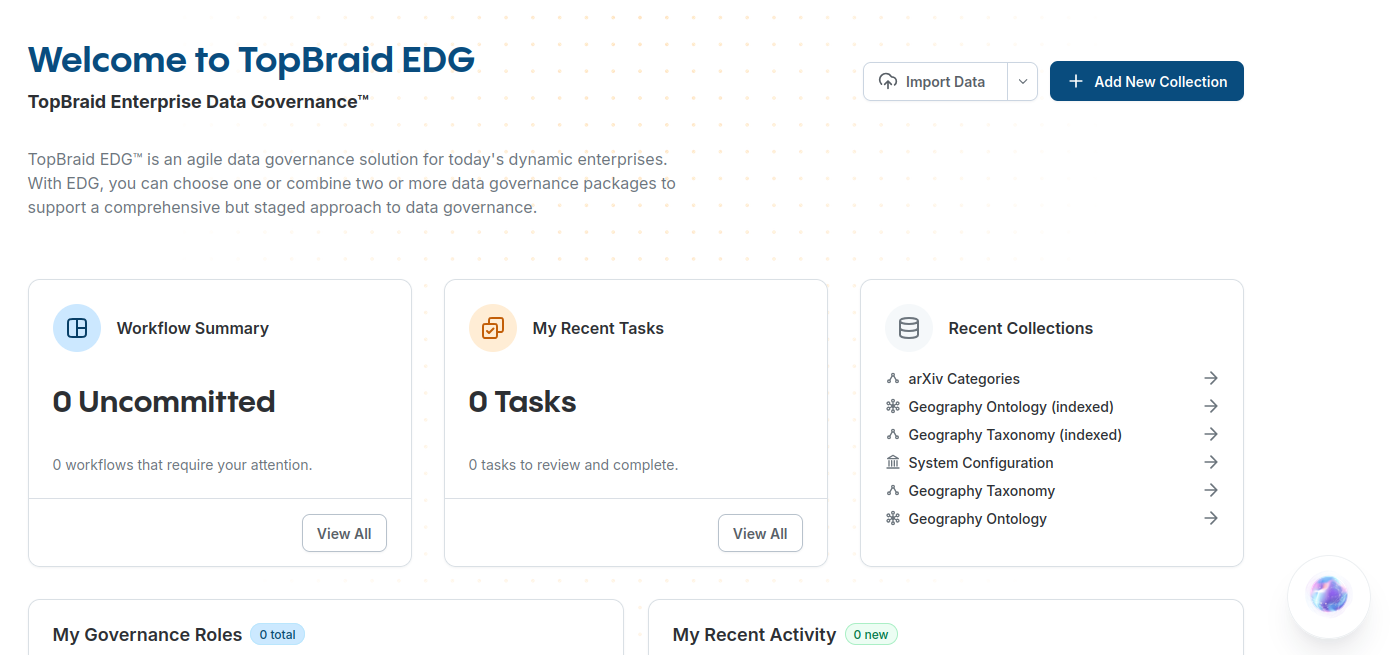
You can find the Copilot Chat feature on the start page, at the bottom right side. Press the chat icon to open the chat panel.
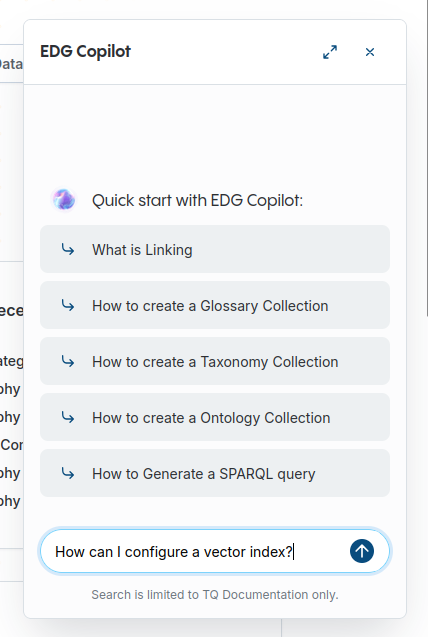
When the chat panel opens, a list of frequently asked questions appears as examples to help you get started. To ask your own question, enter it in the input field at the bottom and press Enter or the send button to submit your question.
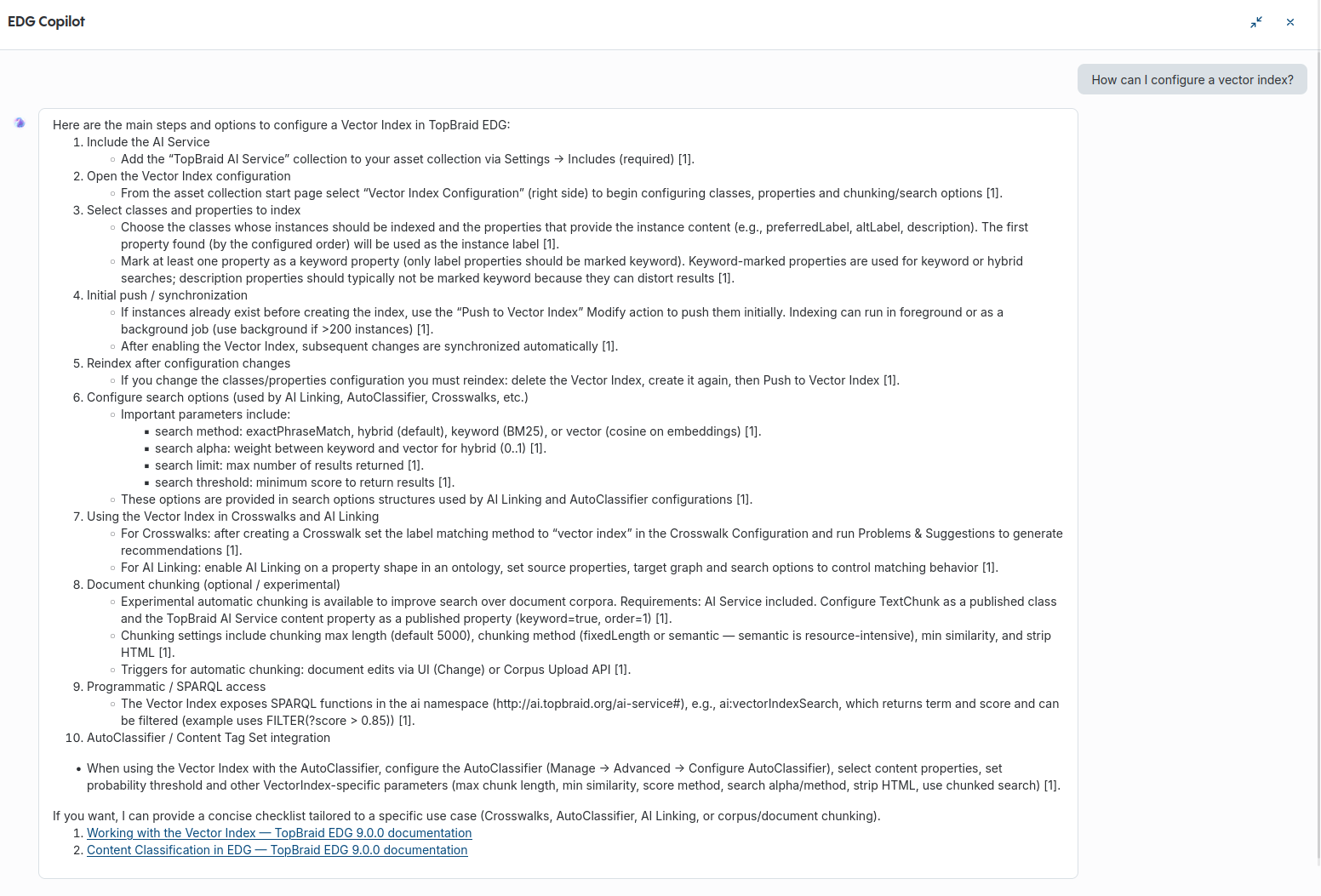
After submitting your question, it may take a short while for the answer to be generated. Once generated, the answer appears in the chat panel. You can scroll through the chat history to review previous questions and answers.
Some answers may contain many details, which can make them too small to read comfortably in the chat panel. In such cases, press the expand button to make the answer full screen, as shown below:
Use Copilot Linking
Copilot Linking leverages the Vector Index to add properties that refer to other asset collections using the search methods provided by the Vector Index. Based on properties given in the configuration, Copilot Linking will search for matching resources in the target asset collection. Any asset collection for which the Vector Index has been enabled can be used as a target for Copilot Linking.
Enable Copilot Linking for a property
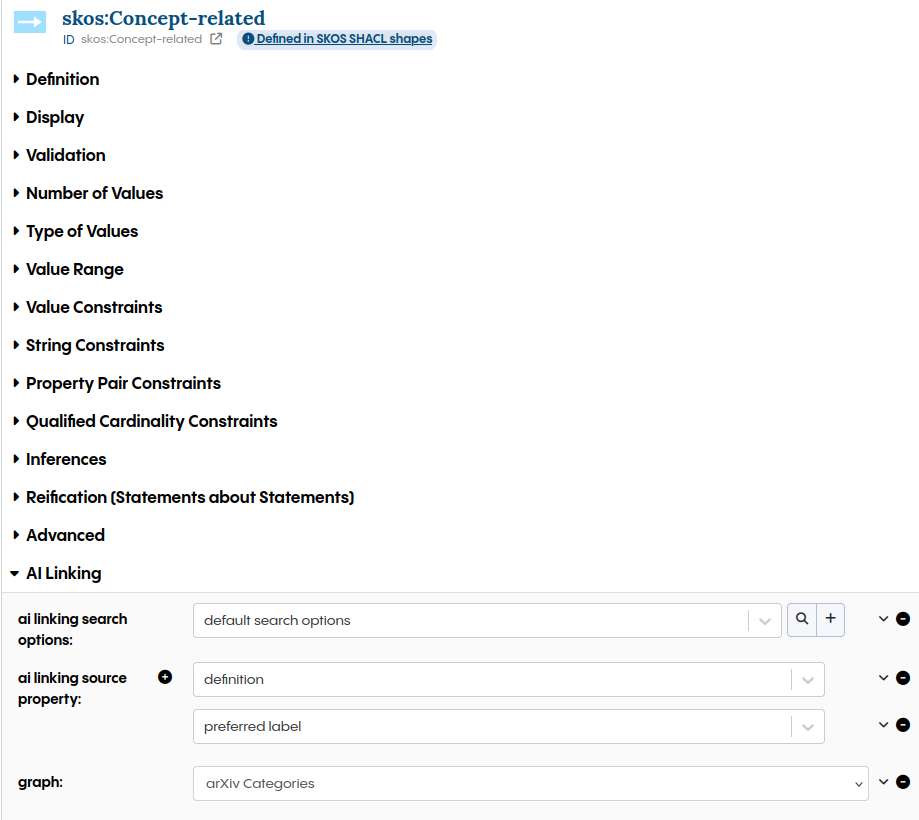
Copilot Linking must be configured in the property shape in an ontology. The following example shows how to enable Copilot Linking for the related property of SKOS Concept. The content of the source properties is used to search for matching resources in the target asset collection. For the related property, definition and preferred label should contain the information that the target should match. In other cases, there could be a dedicated literal that matches better. For example, if there is already a literal for brand and Copilot Linking should add a property to a catalog of brands, that literal property should be used as the source. The asset collection that contains the target must be selected in graph. A search options data structure must be added where further settings can be configured. The search options can be used by multiple Copilot Linking property configurations.
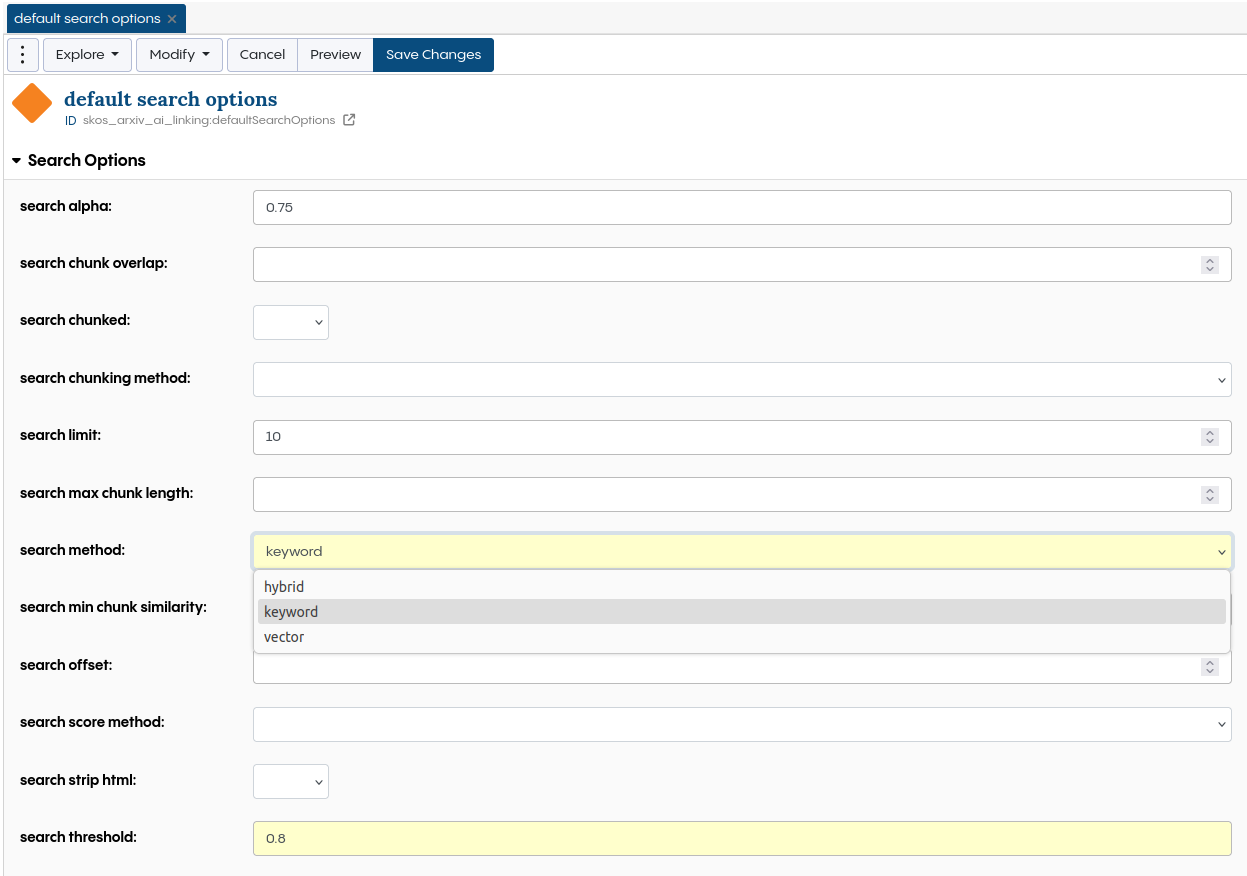
Search options can be used to tweak the search for better results. The most important settings are:
Parameter |
Description |
|---|---|
search alpha |
The relative weight of keyword and vector search for the hybrid search in the range between 0 and 1. 0 is pure keyword search, and 1 is pure vector search. As the hybrid search includes a normalization step, setting this value to 0 or 1 may not give the same result as changing the method to keyword or vector. |
search limit |
The upper limit of results that will be shown. |
search method |
The search method used by the Vector Index. - exactPhraseMatch uses the keyword search to find full matches of a phrase. For example, New York doesn’t match York, only New York. - hybrid combines the results of keyword and vector. It gives a high probability to exact matches and adds semantic similarity to the mix. As it gives the best results for most use cases, it’s used as default. - keyword uses BM25 to rank exact matches. - vector uses the configured embedding model to calculate the cosine similarity as base for the probability. |
search threshold |
A threshold value for the search score. Only results with a score value greater or equal to the threshold will be shown. |
Note
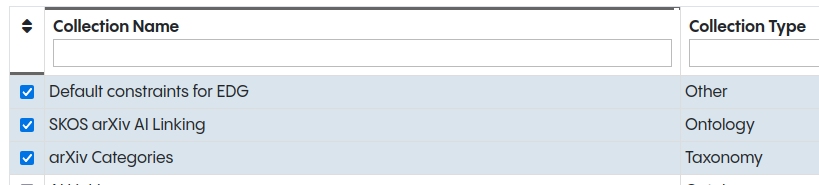
A separate ontology asset collection should be used for the Copilot Linking configuration if the underlying ontology is generic and not designed for a single target. The ontology for the configuration can be added under Settings → Includes, like in the following example where SKOS arXiv AI Linking contains the Copilot Linking configuration.
Applying Copilot Linking suggestions
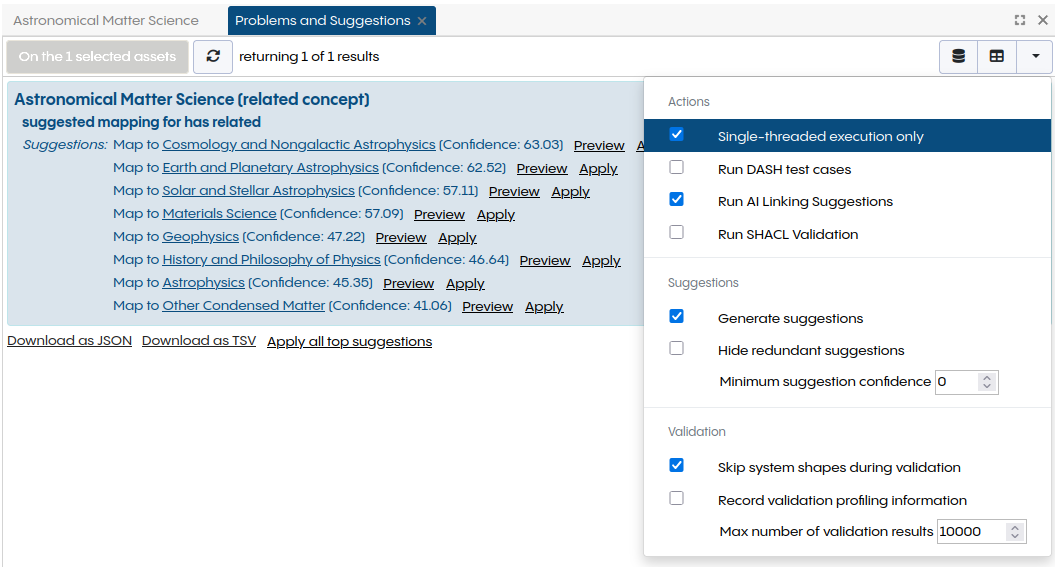
Copilot Linking based suggestions are shown in the Problems and Suggestions panel. Run AI Linking Suggestions must be enabled in the dropdown menu on the top right. It can be used combined with other actions. If this is not wanted, all other Run actions should be unchecked. The Apply button will create the suggested property. If the property shape allows multiple values, multiple suggestions can be applied.
Note
Problems and Suggestions can be triggered for smaller batches using batch actions. In the tree of the Taxonomy Concepts panel, batch actions can be triggered in the dropdown menu that opens on right click.
Use Copilot Natural Language to SPARQL
Enable the Copilot Natural Language to SPARQL Feature
To enable the Natural Language to SPARQL feature for an asset collection, the ontology and the asset collection must each be indexed with the Vector Index, and a Natural Language to SPARQL configuration must be created.
Automatic Configuration
The Create Natural Language to SPARQL config action automatically generates the required Vector Index and Natural Language to SPARQL configuration based on the content of the asset collection. It can be triggered from the Modify menu on the asset collection page.
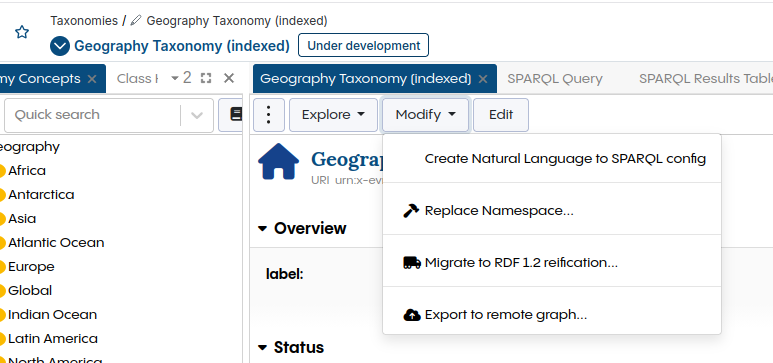
Clicking the action opens a dialog with the following options:
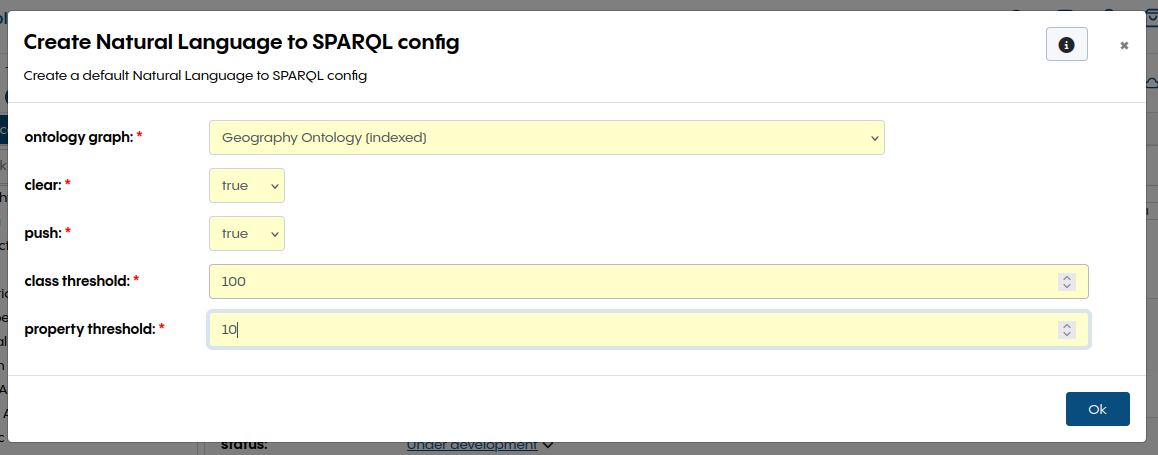
ontology graph: The ontology used to generate SPARQL queries. A Vector Index configuration will be automatically generated for the selected ontology.
clear: When set to
true, any existing Natural Language to SPARQL and Vector Index configurations on both the ontology and the asset collection are removed before creating new ones.push: When set to
true, the Vector Index for both the ontology and the asset collection is built immediately after the configuration is created, running in the background. Set tofalseto manually review and tweak the generated configuration before triggering indexing.class threshold: The minimum number of instances of a class that must exist in the asset collection for that class to be included in the Vector Index configuration.
property threshold: The minimum number of usages of a property that must exist in the asset collection for that property to be included in the Vector Index configuration.
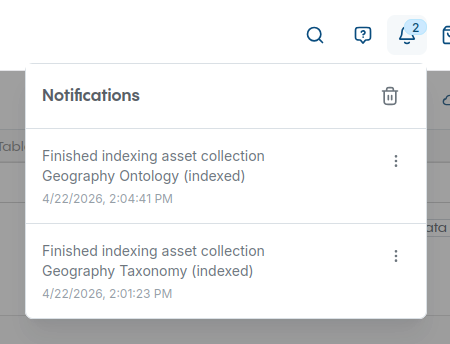
When push is set to true, a notification is shown for both the ontology and the asset collection once each has finished indexing.
Manual Configuration
For advanced setups, the configuration can also be created manually as an alternative to the automatic configuration.
Configure the Vector Index for the Ontology
To enable the Copilot Natural Language to SPARQL feature for an asset collection, it is necessary to index the ontology that is used. It requires configuring a predefined list of classes and properties in the ontology. This is required for finding relevant classes and properties for a given prompt. For more details on how to configure the Vector Index, please refer to Enabling the Vector Index for an Asset Collection.
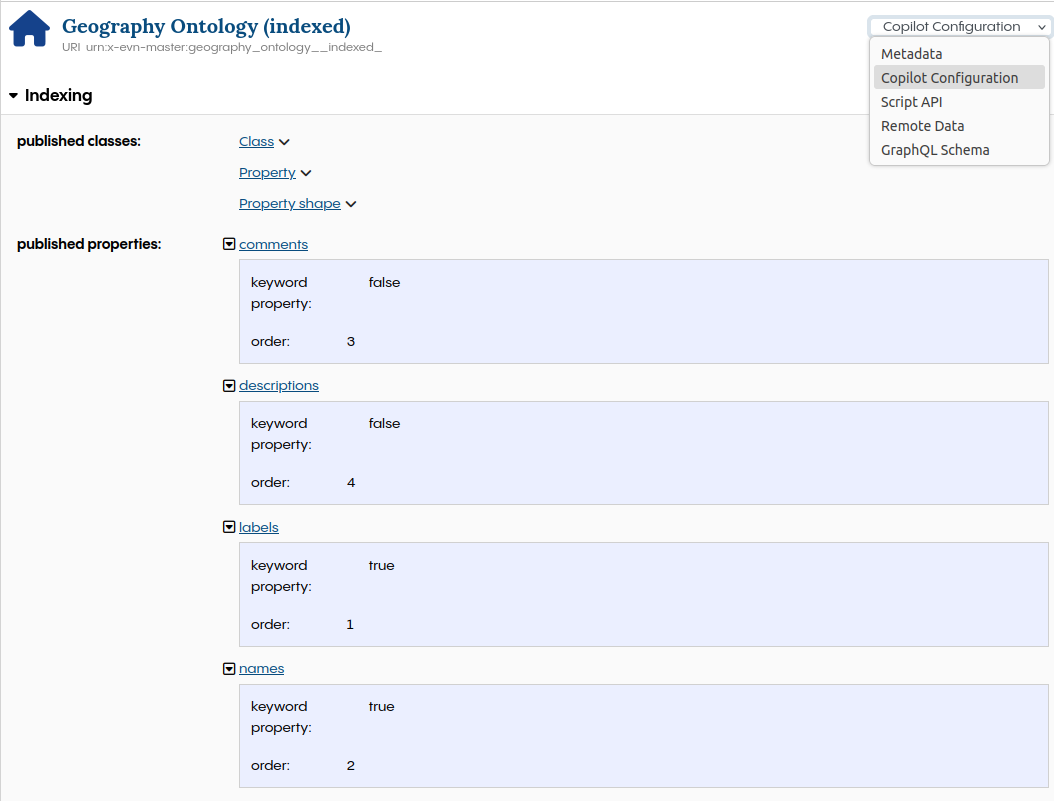
The following classes must be configured:
Class:
owl:ClassProperty (
rdf:Property)Property Shape (
sh:PropertyShape)
And the following properties must be configured:
labels:
rdfs:label, order 1, keyword truenames:
sh:name, order 2, keyword truecomments:
rdfs:comment, order 3, keyword falsedescriptions:
sh:description, order 4, keyword false
The configuration should look like this:
Configure the Vector Index for the Asset Collection
It’s also required to configure the Vector Index for the asset collection that should be queried. There is no predefined configuration for that use case. The classes should be selected to cover all relevant resources that could be queried, while avoiding classes from imported asset collections that generate noise or represent irrelevant metadata. Properties for labels, names, descriptions, comments, and identifiers should be selected. For more details, see the Vector Index documentation.
Configure Natural Language to SPARQL for the Asset Collection
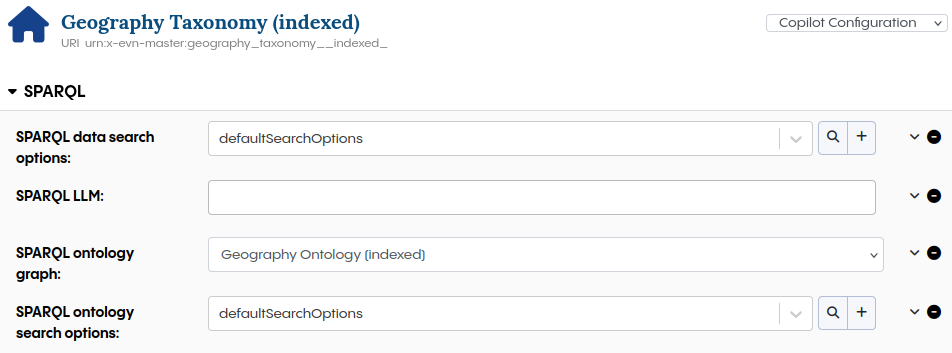
It’s mandatory to configure the SPARQL ontology graph. Select the ontology that has been configured for the Vector Index in the previous step. Optionally, tweak the SPARQL data search options and SPARQL ontology search options, like set a threshold to reduce the noise in the results or change the alpha value to give different weight to keyword and vector search results. It’s possible to select an alternative SPARQL LLM (Large Language Model), but the default model is recommended for most use cases.
Use the Copilot Natural Language to SPARQL Feature
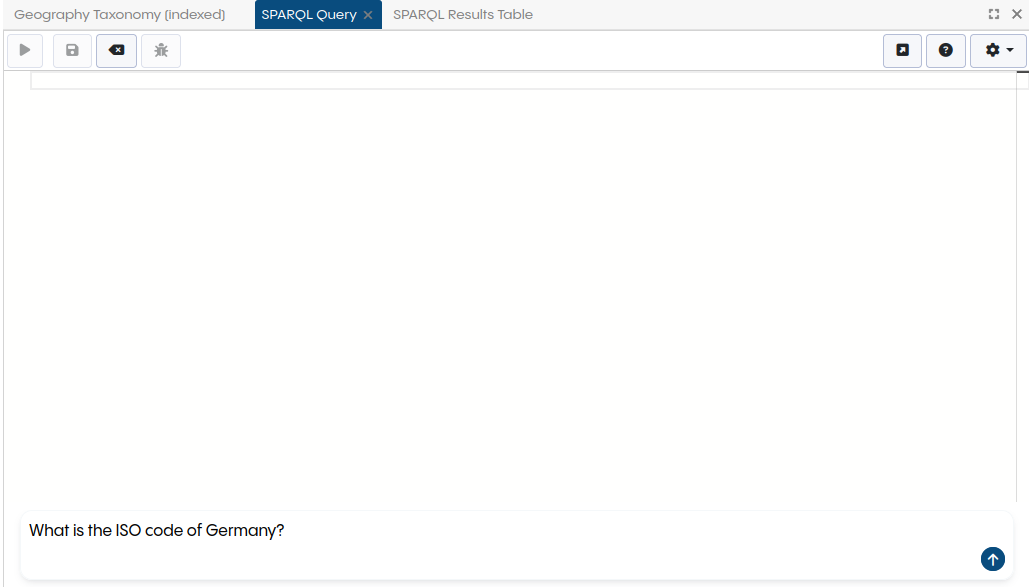
When everything is configured, you can use the Natural Language to SPARQL feature. An additional input field appears at the bottom of the SPARQL Query panel, where you can enter your prompt. After entering your prompt, press the arrow up button to generate the SPARQL query. Please note that it may take a short while for the query to be generated.
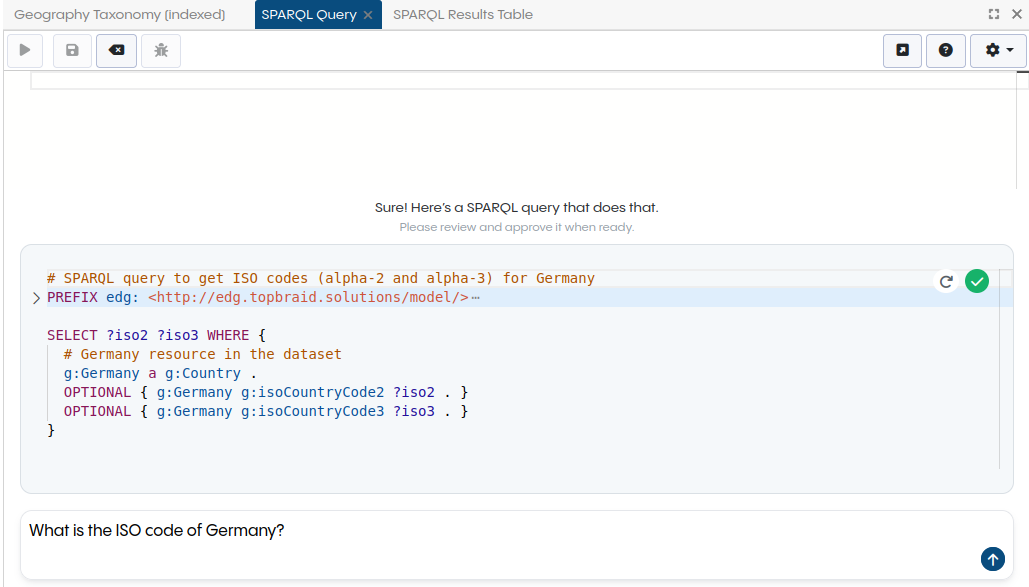
Once generated, the query appears in a separate box for your review. Since generating the query is not deterministic, there is a button to regenerate the query if the initial result is not satisfying. If you are satisfied with the generated query, you can transfer it to the main SPARQL query editor by pressing the green accept button.
Use Copilot Tagging Content
Any asset collection for which the Vector Index has been enabled can be used by the AutoClassifier in the Content Tag Set. Unlike using Maui Server, this method doesn’t require a training step.
See also
See Content Classification in TQ Data Foundation for a detailed guide on content classification.
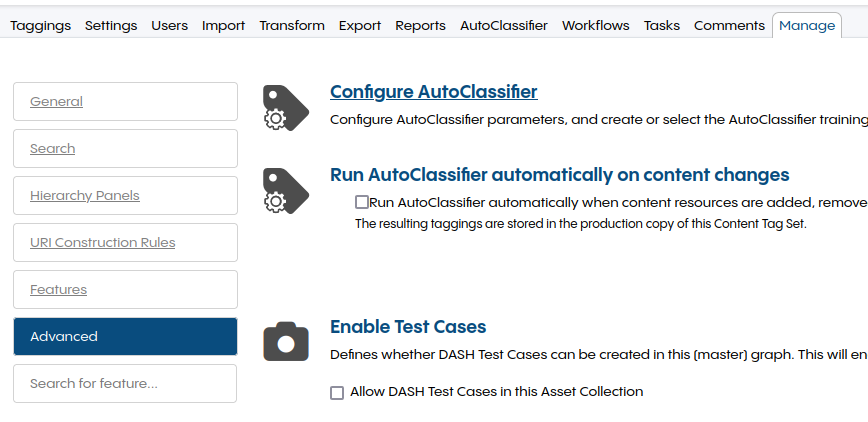
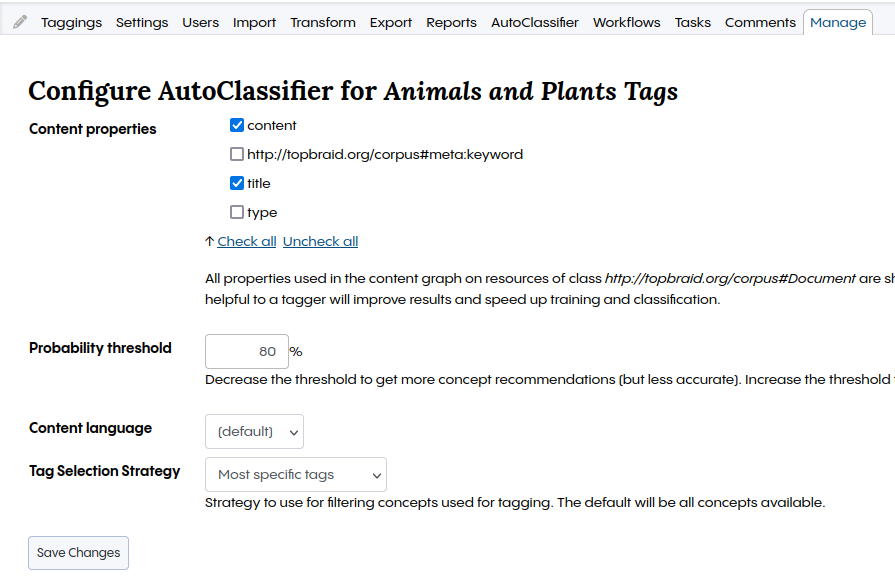
After creating a Content Tag Set, the AutoClassifier must be configured.
Go to Manage, Advanced, Configure AutoClassifier.
Under Content properties, select all properties with content that should be used by the AutoClassifier.
In this example, content and title are used but other properties like filename can be of interest if the documents have meaningful filenames.
The Tag Selection Strategy acts as a filter on the concepts of the taxonomy.
In this example, only the most specific tags are used to ignore concepts with child nodes.
The Probability threshold must be adapted to the Content Tag Set.
Each combination of a corpus and a taxonomy has their own reasonable threshold.
Check some documents in the Taggings tab to find a good threshold value.
Once finished, press the Save Changes button.
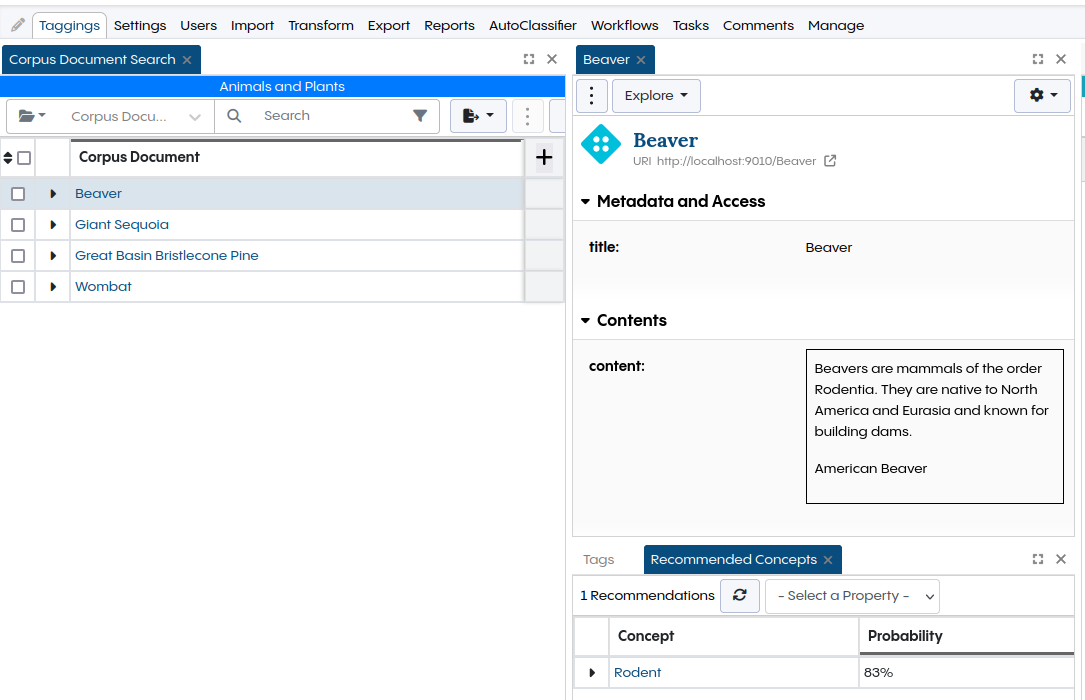
The Taggings tab should show documents from the corpus.
Select one to see concepts found by the AutoClassifier in Recommended Concepts.